OpenClaw Sandbox: Running Your AI Agent in a Cage
Everyone knows AI agents can get things done. The real question is: can you afford the damage when they screw up?
Without a sandbox, the agent shares your machine. Its shell commands run on your OS. The files it reads and writes are your actual files. The processes it spawns are indistinguishable from yours. The model decides to rm -rf /important-stuff, and your files are gone. For real.
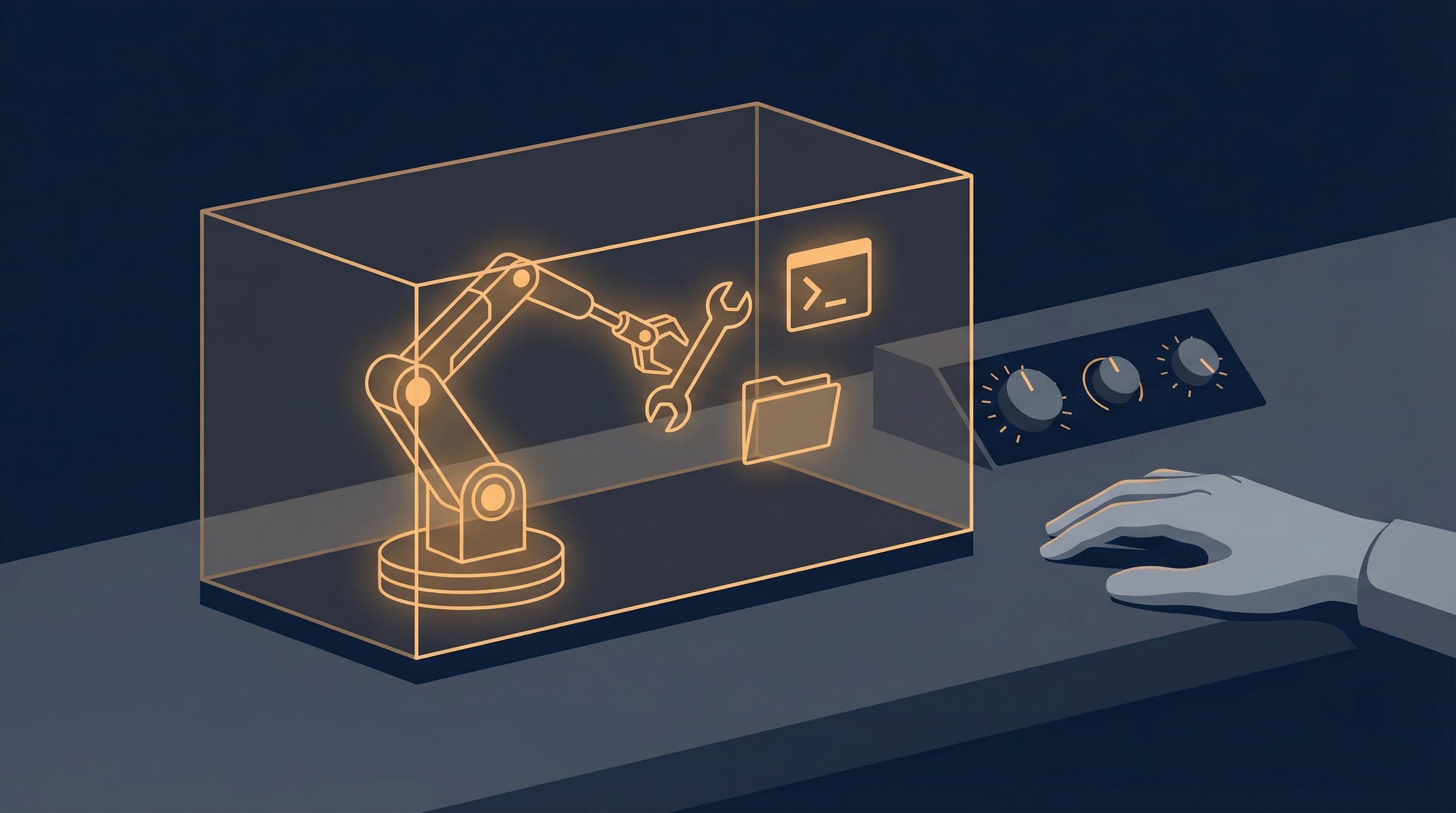
The sandbox does exactly one thing: it spins up a fake mini-computer inside your real computer and makes the agent run in there.
The default backend is Docker. When you enable the sandbox, OpenClaw starts a Docker container based on a minimal Debian image (openclaw-sandbox:bookworm-slim). When the agent needs to execute a tool, the command gets routed to the container instead of your host.
The container gets its own isolated:
- File system:
/inside the container is the container's root, not yours. Your~/Documents,~/.ssh,~/.openclawdon't exist from its perspective - Process space: processes inside the container and on your host can't see each other. The agent runs
ps auxand only sees container processes - Network: no network by default (
docker.network: "none"). The agent triescurlorapt-getinside the sandbox and it fails, because it can't reach anything
The Gateway process always runs on your host, unaffected by the sandbox. The sandbox only isolates tool execution.
This isn't a perfect security boundary. Docker container escapes exist in extreme cases. But it meaningfully shrinks the blast radius when the model does something dumb, from your entire machine down to a single container. Is it enough? Depends on your threat model. But it beats running naked.
What's Isolated, What's Not
Isolated
| Capability | Without Sandbox | With Sandbox |
|---|---|---|
| File system | Agent can see all files on your host | Only sees the container's file system. Your real files are invisible by default |
| Network | Agent can access any address | No network by default. You have to explicitly set docker.network: "bridge" |
| Process visibility | Agent can see all host processes | Only sees its own container processes |
| System commands | Agent can run any command on the host | Can only run what's in the container image. No Node, Python, or curl by default |
| Environment variables | Agent can read host process.env | Sandbox doesn't inherit host env vars. API keys must be passed via sandbox.docker.env |
| Persistence | Files the agent writes stay on disk | Container gets destroyed, files go with it. Unless you bind-mount them back to the host |
Not Isolated
These still work fine inside the sandbox:
exec(run commands): works, just runs inside the container. If the image hasbash,ls,cat,grep, you're goodread(read files): can read files inside the container. WithworkspaceAccess: "ro"or"rw", it can also read mounted workspace fileswrite/edit/apply_patch(write files): can write inside the container. WithworkspaceAccess: "rw", writes go through to your real workspaceprocess(process management): container processes can be managed normally- Session tools (
sessions_list,sessions_send, etc.): Gateway-level operations, unaffected by the sandbox - Messaging: the agent's ability to send WhatsApp, Telegram messages isn't affected. Message routing happens on the Gateway side
- Model inference: the sandbox gates execution, not reasoning
In short: the sandbox scopes where the agent acts and what files it touches. It has no effect on thinking or communication.
Workspace Access
The bridge between the sandbox and your real files is workspaceAccess. Three levels:
| Setting | What the Agent Sees | What the Agent Can Modify |
|---|---|---|
"none" (default) | Only ~/.openclaw/sandboxes inside the sandbox | Can only modify sandbox-internal files |
"ro" | Your workspace mounted read-only at /agent | Can read your files, but write/edit/apply_patch are disabled |
"rw" | Your workspace mounted read-write at /workspace | Can read and write your real files. Sandbox mainly isolates processes and network at this point |
In "none" mode, OpenClaw mirrors the skills files the agent needs into the sandbox so read still works on them. Inbound media files also get copied to the sandbox's media/inbound/ directory.
The Defaults Are Strict on Purpose
Out of the box: no network, no visibility into your files, not even curl in the image. If you don't touch the config, the agent can barely do anything.
That's intentional. OpenClaw starts with minimum privileges and lets you open things up selectively. Every restriction has a knob.
Need to work with your project files?
Change workspaceAccess from "none" to "rw":
{ sandbox: { workspaceAccess: "rw" } }
Read-only access only? Use "ro".
Need to install packages, call APIs, get online?
Change docker.network from "none" to "bridge":
{ sandbox: { docker: { network: "bridge" } } }
Missing commands in the container?
The default Debian slim image only has basic shell tools. Two options:
- Install at setup: use
setupCommandto run installs once when the container is created (you'll need network enabled first) - Swap the image: use
sandbox-common-setup.shto build an image with curl, jq, nodejs, python3, git baked in, or roll your own
Need access to a specific host directory?
Use docker.binds to mount it:
{ sandbox: { docker: { binds: ["/home/user/data:/data:ro"] } } }
Need to run a command on the host?
Use elevated mode. A sandboxed agent can temporarily escalate exec to run on the host:
/elevated on    # exec runs on host for this session (requires approval)
/elevated full  # skip approval
Common Real-World Configs
Most people don't stick with the strictest defaults. Match the config to the use case:
| Use Case | workspaceAccess | network | Notes |
|---|---|---|---|
| Family group chat bot | "none" | "none" | Pure chat. No files, no network |
| Code review assistant | "ro" | "none" | Can read project files. Can't modify. Can't reach the internet |
| Dev assistant that runs tests | "rw" | "bridge" | Can read/write code, install deps, run tests |
| Full-featured personal assistant | "rw" | "bridge" + custom image | Close to unsandboxed experience, but processes and system-level access are still isolated |
The sandbox isn't a kill switch. It's a set of dials. Strict by default, you turn them up based on trust level. And even fully opened, the agent still can't see your process space, system directories, or other users' files.
Three Configuration Dimensions
Sandbox behavior comes down to three things: mode, scope, and backend. Nail these and the rest is details.
Mode: When Does the Sandbox Apply
Controlled by agents.defaults.sandbox.mode:
| Mode | Behavior |
|---|---|
"off" | No sandbox. All tools run on the host |
"non-main" | Only sandbox non-main sessions. Group and channel sessions are non-main by default, so they get sandboxed |
"all" | Sandbox everything |
A common gotcha: "non-main" mode checks session.mainKey (defaults to "main"), not the agent id. Group and channel sessions have their own keys, so they get classified as non-main and sandboxed. If your agent's tools are unexpectedly restricted in a group chat, this is why. Want a specific agent to never be sandboxed? Set mode: "off" explicitly.
Scope: How Many Containers
Controlled by agents.defaults.sandbox.scope:
| Scope | Behavior |
|---|---|
"session" (default) | One container per session |
"agent" | One container per agent |
"shared" | All sandboxed sessions share one container |
"session" gives you the strongest isolation. "shared" saves the most resources. For multi-agent setups, "agent" is usually the right call.
Backend: What Runs the Sandbox
Controlled by agents.defaults.sandbox.backend:
| Backend | Use Case |
|---|---|
"docker" (default) | Local Docker container, full isolation |
"ssh" | Any SSH-reachable remote host |
"openshell" | OpenShell-managed remote sandbox |
Docker covers most use cases.
Setting Up a Docker Sandbox from Scratch
Step 1: Build the sandbox image
Minimal image:
Want more practical breakdowns?
AI, engineering, and experiments. One or two useful emails a month.
No spam. Unsubscribe anytime.
scripts/sandbox-setup.sh
This builds openclaw-sandbox:bookworm-slim. Debian-based, very stripped down.
If you want common tools (curl, jq, nodejs, python3, git):
scripts/sandbox-common-setup.sh
This builds openclaw-sandbox-common:bookworm-slim.
Step 2: Configure
Add this to ~/.openclaw/openclaw.json:
{
  agents: {
    defaults: {
      sandbox: {
        mode: "non-main",
        scope: "session",
        workspaceAccess: "none",
      },
    },
  },
}
Most conservative setup: only sandbox non-main sessions, one container per session, no real file access.
Step 3: Verify
openclaw sandbox explain
This prints the active sandbox mode, scope, and tool policies. Sanity check everything here.
Custom Docker Images and setupCommand
The default bookworm-slim image is bare. No Node, no Python. If your skills need specific runtimes, two paths.
Path 1: setupCommand
Runs once when the container is created (not on every tool execution):
{
  agents: {
    defaults: {
      sandbox: {
        mode: "all",
        docker: {
          network: "bridge",  // setupCommand needs network to install packages
          setupCommand: "apt-get update && apt-get install -y nodejs npm curl",
        },
      },
    },
  },
}
Watch out for these:
- Default
docker.networkis"none", so apt-get will fail. Enable"bridge"first readOnlyRoot: truewill block writes- Container user must be root to install packages. Omit the
userconfig or setuser: "0:0" - Sandbox doesn't inherit host
process.env. Pass API keys throughsandbox.docker.env
Path 2: Bake a custom image
If your requirements are stable, build an image with everything pre-installed. Cleaner, faster startup.
{
  agents: {
    defaults: {
      sandbox: {
        docker: {
          image: "my-custom-sandbox:latest",
        },
      },
    },
  },
}
Custom Bind Mounts
docker.binds mounts host directories into the container:
{
  agents: {
    defaults: {
      sandbox: {
        docker: {
          binds: [
            "/home/user/source:/source:ro",
            "/var/data/myapp:/data:ro",
          ],
        },
      },
    },
  },
}
Format is host:container:mode. Omit mode and it defaults to rw.
Security notes:
- Binds punch through the sandbox filesystem. Be careful
- Secret files, SSH keys, credentials: use
:ro - OpenClaw blocks mounting
docker.sock,/etc,/proc,/sys,/dev - With
scope: "shared", per-agent binds are ignored. Only global config applies
In-Sandbox Browser
The sandbox can also run an isolated browser. Build the browser sandbox image first:
scripts/sandbox-browser-setup.sh
Config lives under agents.defaults.sandbox.browser:
autoStart: auto-start browser when browser tools are needed (on by default)network: browser container uses a dedicated Docker networkopenclaw-sandbox-browsercdpSourceRange: CIDR whitelist restricting CDP connection sourcesallowHostControl: whether sandboxed sessions can control the host browser
Browser sandbox noVNC access is password-protected. OpenClaw generates short-lived token URLs with the password embedded.
Tool Policies: A Separate Layer
The sandbox controls where tools run. Tool policies control whether tools can run at all. Two independent systems.
Three Layers of Control
OpenClaw security has three distinct layers:
- Sandbox (
sandbox.*): determines whether tools run in a Docker container or on the host - Tool policies (
tools.*): determines which tools are available and which are blocked - Elevated (
tools.elevated.*): an escape hatch for exec, letting sandboxed sessions run commands on the host
How Tool Policies Work
denyalways wins. A denied tool can't be re-enabled by the sandbox or elevated- If the
allowlist is non-empty, anything not on the list is blocked - Tool policies are hard limits.
/execcan't override a deniedexectool
Tool Group Shortcuts
Instead of listing individual tool names, use groups:
{
  tools: {
    sandbox: {
      tools: {
        allow: ["group:runtime", "group:fs", "group:sessions", "group:memory"],
      },
    },
  },
}
Available groups:
| Group | Tools Included |
|---|---|
group:runtime | exec, bash, process |
group:fs | read, write, edit, apply_patch |
group:sessions | sessions_list, sessions_history, sessions_send, sessions_spawn, session_status |
group:memory | memory_search, memory_get |
group:ui | browser, canvas |
group:automation | cron, gateway |
group:messaging | message |
group:nodes | nodes |
group:openclaw | all built-in OpenClaw tools (excludes provider plugins) |
Elevated: The Escape Hatch for Exec
Sometimes you genuinely need to run a command on the host while sandboxed. That's what elevated does:
/elevated on: exec for this session runs on the host (still requires approval)/elevated full: skip approval
Elevated only affects exec. It doesn't grant additional tool permissions. If exec is denied by tool policy, elevated can't help.
Requirements:
tools.elevated.enabledmust be true- Sender must be in the
tools.elevated.allowFrom.<provider>whitelist
Example Configurations
Read-only agent
Can only read files, can't modify anything:
{
  tools: {
    allow: ["read"],
    deny: ["exec", "write", "edit", "apply_patch", "process"],
  },
}
Safe execution agent (can run commands, can't modify files)
{
  tools: {
    allow: ["read", "exec", "process"],
    deny: ["write", "edit", "apply_patch", "browser", "gateway"],
  },
}
Communication-only agent (can only send and receive messages)
{
  tools: {
    sessions: { visibility: "tree" },
    allow: ["sessions_list", "sessions_send", "sessions_history", "session_status"],
    deny: ["exec", "write", "edit", "apply_patch", "read", "browser"],
  },
}
Multi-agent differentiated config
Personal agent runs unsandboxed with full permissions. Family agent is sandboxed and read-only:
{
  agents: {
    list: [
      {
        id: "personal",
        workspace: "~/.openclaw/workspace-personal",
        sandbox: { mode: "off" },
      },
      {
        id: "family",
        workspace: "~/.openclaw/workspace-family",
        sandbox: {
          mode: "all",
          scope: "agent",
        },
        tools: {
          allow: ["read"],
          deny: ["exec", "write", "edit", "apply_patch", "process", "browser"],
        },
      },
    ],
  },
}
SSH Backend: Remote Host as Sandbox
Don't want Docker running locally? Put the sandbox on a remote server:
{
  agents: {
    defaults: {
      sandbox: {
        mode: "all",
        backend: "ssh",
        scope: "session",
        workspaceAccess: "rw",
        ssh: {
          target: "user@remote-host:22",
          workspaceRoot: "/tmp/openclaw-sandboxes",
          strictHostKeyChecking: true,
          identityFile: "~/.ssh/id_ed25519",
        },
      },
    },
  },
}
How it works:
- OpenClaw creates an isolated directory on the remote host based on your scope setting
- On first use, it syncs your local workspace to the remote
- From then on, exec, read, write all happen remotely
- Changes on the remote are not auto-synced back locally
The remote workspace becomes the source of truth after the initial sync. Local file changes won't show up on the remote until you run openclaw sandbox recreate.
The SSH backend doesn't support sandbox browsers.
Debugging Sandbox Issues
The most useful command:
# Current sandbox config
openclaw sandbox explain

# Sandbox state for a specific session
openclaw sandbox explain --session agent:main:main

# Config for a specific agent
openclaw sandbox explain --agent work

# JSON output for scripting
openclaw sandbox explain --json
Common Issues
"Tool X was blocked by sandbox policy"
Two options: turn off the sandbox (agents.defaults.sandbox.mode: "off"), or allow the tool inside the sandbox (add it to tools.sandbox.tools.allow or remove it from deny).
"I thought this was a main session, why is it sandboxed?"
In "non-main" mode, group and channel sessions aren't considered main. Run sandbox explain to check the actual session key. Either switch to "off" mode, or accept that group sessions get sandboxed.
"Set mode: all but agent isn't sandboxed"
Check whether a global agents.defaults.sandbox.mode is overriding it. Agent-level config takes priority, so make sure it didn't get clobbered.
"setupCommand fails"
Nine times out of ten it's the default network being "none". Package installs need network access. Flip docker.network to "bridge". Also check if readOnlyRoot is true and whether the user is root.
"Containers aren't isolated per agent"
scope defaults to "session". For per-agent containers, set scope: "agent".
Wrapping Up
OpenClaw's sandbox has three layers:
- Sandbox: controls where tools run. Docker container, SSH remote, or the host
- Tool policies: controls which tools are available. Allow and deny lists
- Elevated: the escape hatch for running exec on the host when you're sandboxed
The three are independent but layered. Deny always wins. The sandbox can't bypass tool policies. Elevated only touches exec. Once you internalize these three layers, the config clicks.
Three steps to get going: build the image, write the config in openclaw.json, verify with sandbox explain.
New ideas, straight to your inbox.
AI, engineering, and experiments. One or two useful emails a month.
No spam. Unsubscribe anytime.